Estimated read time: ~10–12 minutes
Audience: Windows/AD administrators, M365/Entra admins, automation engineers
Overview
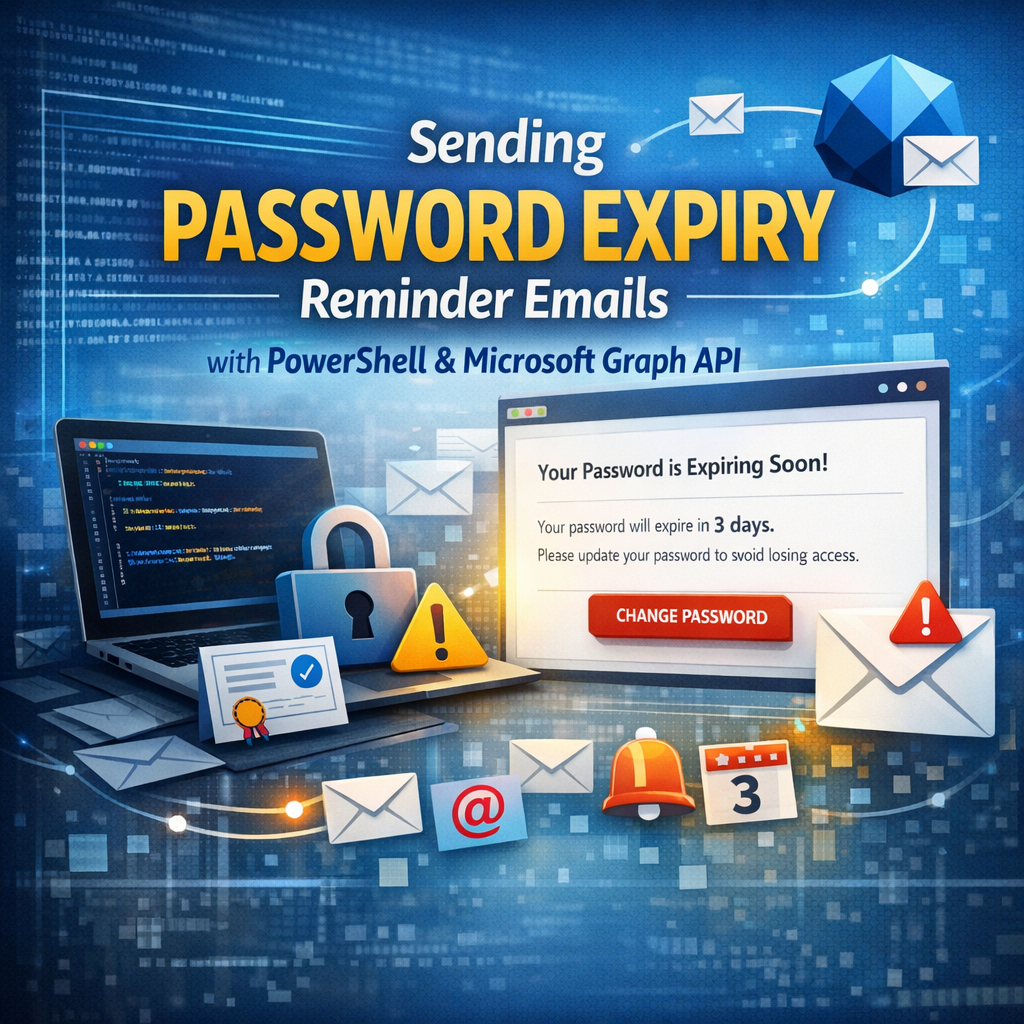
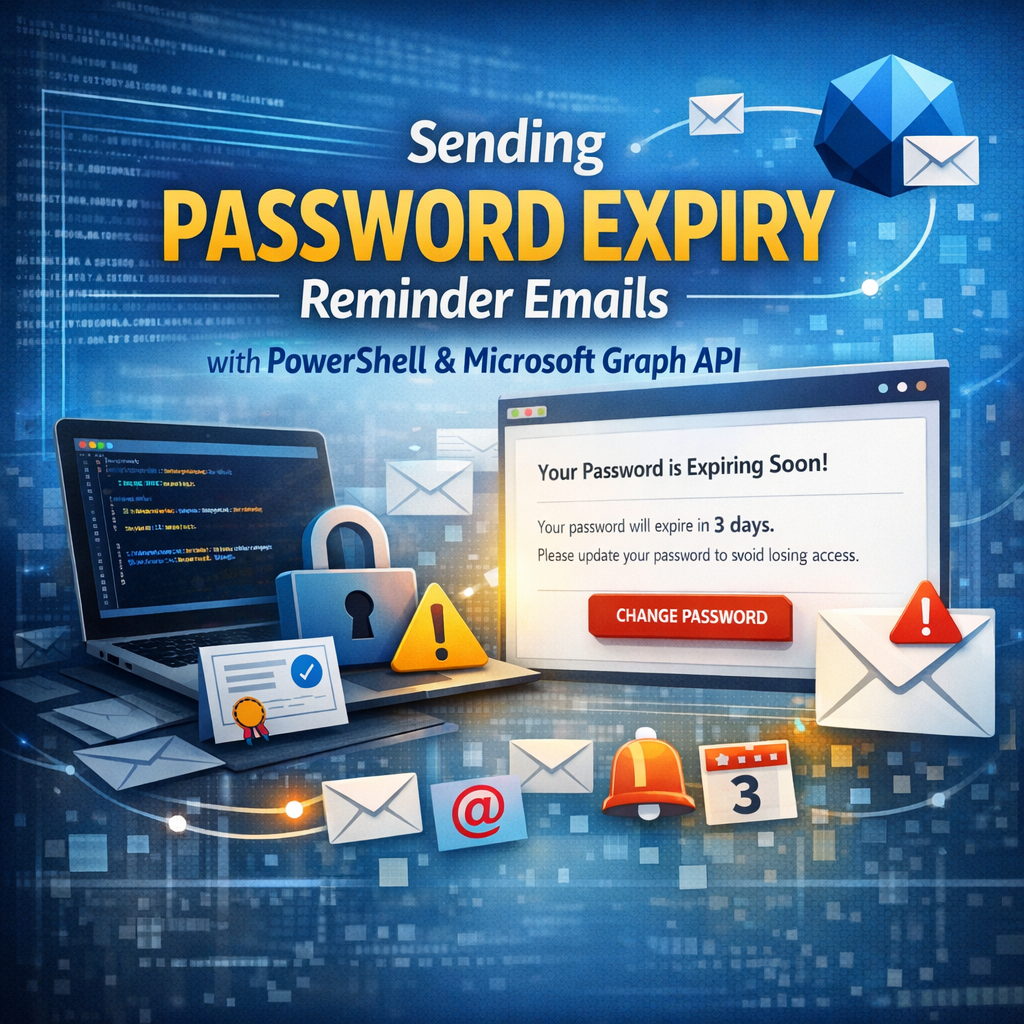
Password expiry is one of the most common causes of user lockouts and helpdesk calls. A small PowerShell automation that detects upcoming password expirations from Active Directory and emails users proactively can reduce disruption significantly. One modern way to send email in Microsoft 365 is to use Microsoft Graph and the sendMail endpoint, which supports JSON payloads, HTML bodies, and attachments.
In this guide, you’ll build an end‑to‑end solution that:
- Queries AD for each user’s password expiry timestamp using
msDS-UserPasswordExpiryTimeComputed(computed by the DC). - Sends reminders only on specific “warning days” (e.g., 30/14/7/3/1/0).
- Sends email through Microsoft Graph using app‑only certificate authentication (no stored passwords).
- Uses Graph
POST /users/{id|upn}/sendMailto send via a mailbox.
Architecture (How it Works)
Flow:
- PowerShell runs on a scheduled server (Task Scheduler).
- Script queries AD users and reads
msDS-UserPasswordExpiryTimeComputed. [learn.microsoft.com] - If user is within your warning intervals (e.g., 14 days left), script builds a branded HTML email.
- Script authenticates to Graph with Connect‑MgGraph app‑only cert auth.
- Script calls Graph
/sendMailto send the message.
Prerequisites
1) Active Directory access
- Script host must be able to run
Get-ADUser(RSAT AD PowerShell module installed and permissions to read users). - You will query
msDS-UserPasswordExpiryTimeComputed, which is computed by the DC based on password policy and user flags.
2) Microsoft Graph PowerShell SDK
You’ll use the Graph PowerShell SDK for authentication and requests. The connection entry point is Connect-MgGraph.
3) App registration with certificate (App‑Only)
For unattended automation, use app‑only authentication. Microsoft’s guidance for Graph PowerShell app‑only flows requires:
- an Entra app registration,
- a certificate credential,
- and admin consent for required Graph permissions.
Step‑by‑Step Setup
Step 1 — Create an Entra App Registration
Create an app registration in Microsoft Entra ID and note:
- Tenant ID
- Client (Application) ID
App‑only access requires an administrator to consent to the permissions for the application.
Step 2 — Create/Upload a Certificate Credential
Generate or use an existing X.509 certificate. Upload the public key to the app registration and install the certificate (with private key) on the server running the script. App‑only Graph PowerShell auth supports certificate thumbprint authentication.
Step 3 — Assign Microsoft Graph Permissions
At minimum, to send mail, your app needs:
- Application permission:
Mail.Send[learn.microsoft.com]
Grant admin consent after adding it (required for app‑only). [github.com], [learn.microsoft.com]
⚠️ Security note:
Mail.Send(Application) is powerful because it can send mail as mailboxes in the tenant depending on how you call/users/{id}/sendMail. Restrict it where possible. [learn.microsoft.com], [learn.microsoft.com]
Step 4 — Restrict Mailbox Scope (Recommended)
To reduce risk, restrict the app to only an allowed set of mailboxes (for example, only a dedicated automation mailbox). In Exchange Online, this can be done with Application Access Policies (legacy) which restrict app access to a scope group; Microsoft notes these policies are being replaced by RBAC for applications. [learn.microsoft.com]
How Password Expiry Is Calculated in AD
The computed attribute msDS-UserPasswordExpiryTimeComputed represents the time when a user’s password will expire. AD calculates it using rules such as:
- If “password never expires” or certain UAC flags are set → value becomes a max sentinel.
- Otherwise, expiry is essentially
pwdLastSet + Effective-MaximumPasswordAge. [learn.microsoft.com]
This is why msDS-UserPasswordExpiryTimeComputed is the best practical attribute to query in scripts for accurate expiry timing. [learn.microsoft.com]
How Sending Email Works in Graph
Microsoft Graph provides the sendMail action:
POST /users/{id | userPrincipalName}/sendMail- The request supports JSON bodies with
messageand optionalsaveToSentItems. - On success, it returns HTTP 202 Accepted. [learn.microsoft.com]
If you want inline images or attachments, you can use fileAttachment objects. A fileAttachment requires @odata.type and base64-encoded contentBytes, and supports isInline + contentId for CID images. [learn.microsoft.com], [learn.microsoft.com]
Testing Strategy (Before Going Live)
A simple and safe rollout pattern:
- Add a
TESTMODEswitch - When enabled, override all recipients to your own test address
- Validate formatting, images, and warning-day logic
- Flip
TESTMODEoff for production
This pattern reduces accidental mass emailing during development.
Troubleshooting Tips
“Access denied” when calling /sendMail
- Confirm
Mail.SendApplication permission is granted and admin-consented. [learn.microsoft.com], [github.com] - If you used mailbox restrictions (Application Access Policy/RBAC for apps), confirm your sender mailbox is included. [learn.microsoft.com]
Inline images not showing
- Ensure attachments include:
@odata.type = "#microsoft.graph.fileAttachment"contentBytesbase64isInline = truecontentIdmatchescid:contentIdin HTML [learn.microsoft.com], [learn.microsoft.com]
Graph connection issues
- Confirm the certificate exists in the certificate store accessible to the script account.
- Confirm you are calling
Connect‑MgGraphwith-TenantId -ClientId -CertificateThumbprint.